Companion for Live Shows · iPhone · iPad
Surface Remote for Companion
Your iPhone or iPad becomes a button surface for Bitfocus Companion. Press buttons, change pages, see live button text and colour. On your home screen it is called Surface Remote.
Getting started
Five steps to a working surface.
- Install Companion. Get Bitfocus Companion from bitfocus.io and run it on a computer on the same Wi-Fi or network as your phone.
- Turn on Satellite. In Companion's Settings, make sure the Satellite WebSocket listener is on. Its port is 16623 unless you changed it.
- Allow Local Network. iOS asks once. Tap Allow.
- Tap your Companion. The Connect screen lists it under Found on network. Tap it. The app switches to the Surface screen when it is Online.
- Not listed? Type the computer's address in Host (Companion's launcher window shows it, for example
192.168.1.50) and the port in Port. Tap Connect.
The app remembers your last connection and connects to it when it opens. Free, nothing to buy.
Saved connection · free · from 1.1.3
One Companion, remembered.
- Free: host, port, surface name and surface settings are kept.
- Opens connected. The last connection is used at launch. Turn off Auto-connect last in Settings to stop that.
- Bought Save Connection or the paid app before? You keep everything. Saving is now free for everyone.
- Lock icons mark Multi-Instance features. Tap one to see the price.
Multi-Instance · $9.99 in-app
Many Companions. Two at once on iPad.
- Save Server keeps each one in the Servers list. Star one to connect to it first.
- Tap the name at the top of the Surface screen to switch. Pick a saved server or a Companion on your network. The surface shows Connecting, then its buttons.
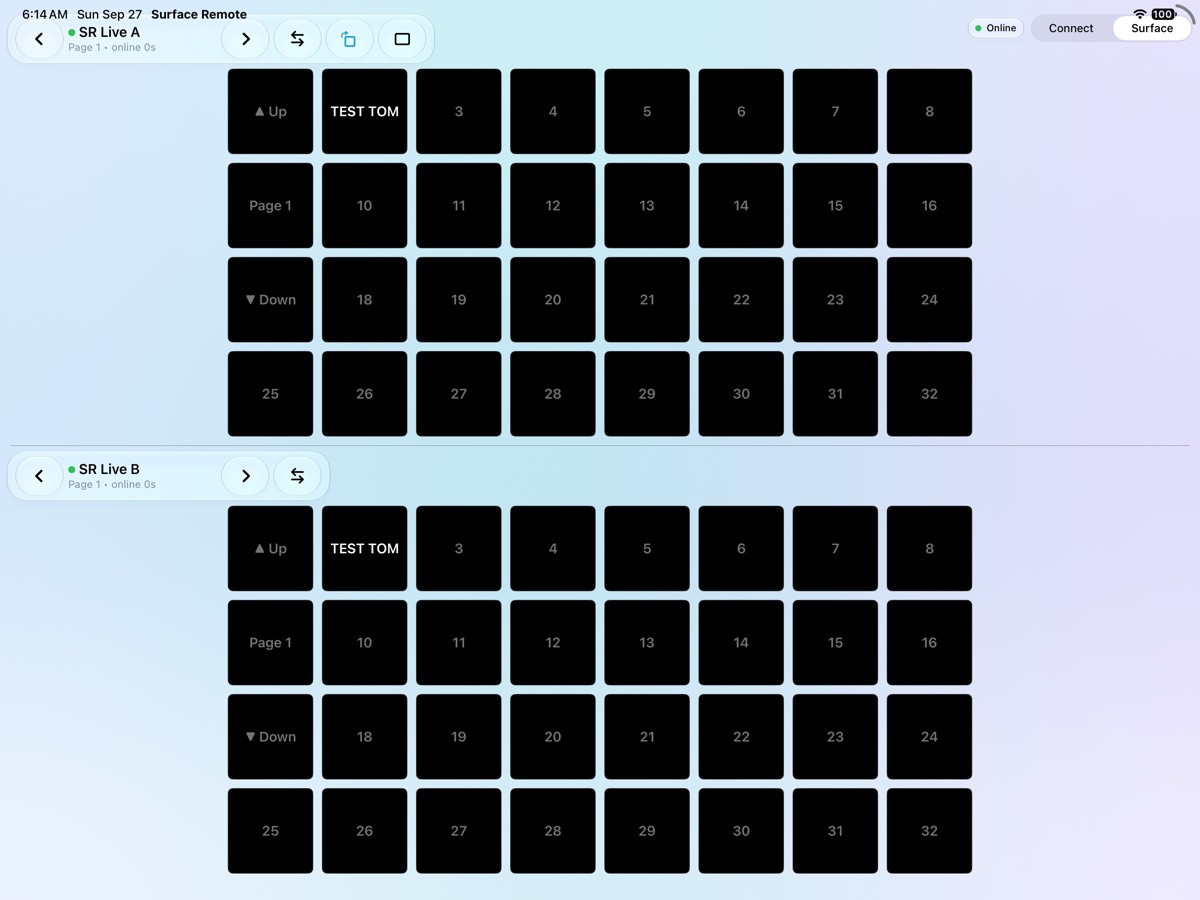
- iPad: Second surface. Two surfaces at once. Each names its own Companion and has its own page arrows. ✕ on the second one closes it.
- Biggest keys, automatically. On iPad the surfaces sit top and bottom or side by side — whichever gives bigger keys. Rotate and it re-fits.
- Companion lists each side as its own surface. Two sides on one Companion is fine.
- Restore Purchases is in Settings › Purchases. One purchase covers your devices on the same Apple Account.
Multi-Instance · how to set up two
Two Companions, or two surfaces.
- Buy Multi-Instance. Settings tab (gear) › Purchases.
- Connect to the first. Tap your Companion on the Connect screen. Save Server keeps it.
- iPad: tap Second surface. A second surface opens below or beside.
- Pick its Companion. Tap the name at the top of that surface. Choose a saved server or one on your network. Same Companion twice is fine.
- Done with it? Tap ✕ on the second surface.
- In Companion: open Surfaces. Each side is listed on its own. Set its page there.
The name at the top of each surface is the Companion it is on:
- Your saved name for that address, if you saved one.
- Otherwise the name Companion gives itself on the network, for example Companion (Control Room).
- Otherwise its address. A Companion that does not announce itself shows as Companion at 192.168.1.82.
The Surface Name on the Connect screen is what Companion calls this device.
Pages and buttons
It follows Companion.
- Tap a button to press it. Hold to hold it. The key pushes in, flashes a ring when you let go, and the iPhone gives a light tap.
- Up / Down buttons change the Companion page. The page number shows at the top.
- Button text and colour update live from Companion.
- Rotate button (top of the Surface screen) stands the buttons upright: hold the phone upright and Companion's columns become rows. Tap it again for sideways.
- In Companion, the phone shows under Surfaces. Set its page and name there.
- PIN lock. If Companion locks the surface with a PIN, the keys dim and a keypad shows. Type the PIN. The keys come back when Companion unlocks.
Settings tab · new in 1.1
Tap the gear.
- The gear tab holds App, Connection, Surface, Purchases and Diagnostics. It turns with the phone.
- Rows and Columns set the grid. Default 4 × 8.
- Artwork Off shows text and colour only. Off is fastest. 72 or 96 shows Companion's button pictures.
- Text Size makes labels bigger or smaller.
- Advanced layout adds encoder (knob) controls.
- Press feedback and Haptic on press (iPhone) turn the press flash and tap off or on. Both on by default.
- Auto reconnect comes back by itself if Companion restarts.
- Settings › App: Keep screen awake while connected stops the phone locking mid-show.
- Settings › App: Theme: System, Light or Dark.
- Diagnostics shows the server, latency, reconnects, Companion and Satellite versions, and uptime. Share Log sends the connection log.
- The Connect screen turns with the phone too: one column upright, two side by side sideways.
Custom Dashboard · new in 1.1
Your keys, one screen.
- Open the Dashboard tab. Tap Add keys.
- Use the page arrows to find a key on any Companion page. Tap it to add it. Tap Done.
- Keys stay live: text, colour and state follow Companion. Tap to press.
- Edit removes keys. The Dashboard is kept for each server.
- Needs Companion 5 with Satellite subscriptions on. If they are off, the tab says so.
Operator mode · new in 1.1
Hand a crew member only their keys.
- On your Dashboard tap Share. Name the role, pick its keys, tap Show QR.
- On the crew phone: Connect › Operator. Scan the QR. That phone shows only those keys.
- Your phone can be off. The crew phone talks to Companion directly.
- Revoke in the same Share sheet. Their keys go within seconds.
- One-time setup: in Companion, add a custom variable named
surfaceremote_roles. The app tells you if it is missing. Companion's HTTP API must be on.
Troubleshooting
If it will not connect.
- Stuck on Connecting or Offline? Check iOS Settings › Privacy & Security › Local Network. This app must be on. Without it the app cannot reach Companion.
- Wrong port. The app uses the WebSocket port (16623), not the TCP port (16622).
- Same network. Phone and Companion computer must be on the same network. Guest Wi-Fi often blocks devices from seeing each other.
- Firewall. Allow Companion through the computer's firewall.
- Companion closed or restarted. The status pill reads Offline. With Auto reconnect on, it comes back Online when Companion does.
- Buttons slow to update? Set Artwork to Off.
- Up / Down show no picture? With Artwork off they show as text labels. That is expected.
- Want the phone upright? Tap the rotate button on the Surface screen.
- Connection forgotten? Update to 1.1.3. It remembers your last connection for free.
- Saved servers gone? They are kept on the device. Buy or restore Multi-Instance to see them again.
- A PIN pad covers the keys? Companion's PIN lock is on. Type the PIN on the app's keypad.
- Need help from support? Settings › Diagnostics › Share Log sends the connection log. Attach it to your email.
Privacy
No account. Nothing collected.
The app talks only to the Companion server you use. Saved servers stay on your device. The camera is used only to scan an Operator QR code, on the device. Privacy policy.
Not affiliated with, endorsed by, or sponsored by Bitfocus. Companion is a product of Bitfocus AS.
Questions?